A Simple Plan for Backing Up Your Files Properly
Most people only think about backups after something goes wrong: a laptop that will not start, a phone dropped in water, a folder deleted by mistake. Backing up your files is one of the least exciting tasks in technology, but it is also one of the few that can save years of photos, documents and work. The good news is that a solid plan is simple and does not need much money.
What a backup really is
A backup is a separate copy of your data stored somewhere that would survive if the original disappeared. That last part matters. A copy in another folder on the same computer is not a backup, because a failed drive, a virus or a theft takes both away together.
It also helps to separate backup from syncing. Sync services mirror changes between devices. If you delete a file on one, it vanishes from the others too. Syncing is convenient, but on its own it does not protect you from accidental deletion or from files being damaged.
The 3-2-1 idea in plain language
A widely used rule of thumb is called 3-2-1. It sounds technical, but it is easy to follow:
- Keep three copies of anything important: the original and two backups.
- Store them on two different kinds of storage, such as your computer and an external drive.
- Keep one copy somewhere else, such as an online storage service or a drive at a relative’s home.
You do not need to apply this to every file. Choose what you would be upset to lose and focus there first.
Decide what to protect
Start with a quick inventory. Family photos and videos usually come first because they cannot be recreated. Then think about documents such as tax records, contracts, school or work files, and identity scans. After that, consider things that would be annoying to rebuild: music libraries, creative projects, saved settings and notes.
Applications and the operating system can usually be reinstalled, so they are lower priority. Your own data is what counts.
Tools for backing up your files
An external drive
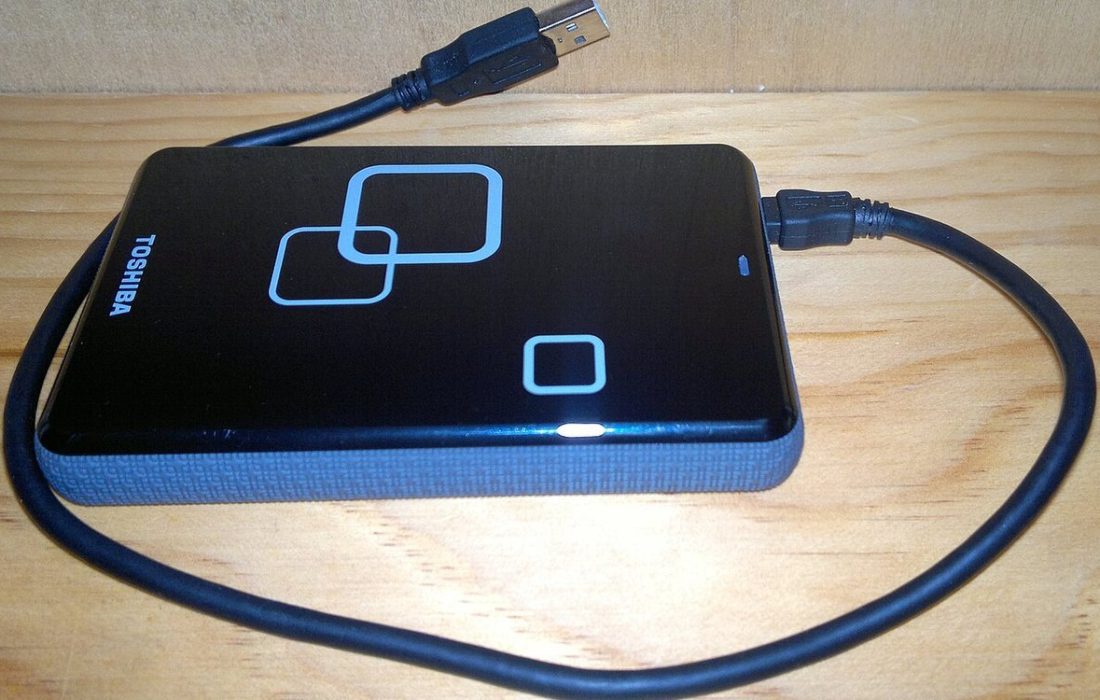
A portable hard drive or solid state drive is the easiest starting point. Both Windows and macOS include built-in backup tools that copy your files automatically when the drive is connected. Pick a drive with more capacity than your current data so you have room for older versions.
Online storage
Cloud backup services keep a copy of your files on remote servers, which protects you from fire, flood and theft at home. Look for options that encrypt your data, keep previous versions of files, and run quietly in the background. Read the terms about how long deleted files are kept so you understand what you are relying on.
A second drive for important extras
For truly precious material, a second drive stored away from home adds another layer. You can update it every few months and keep it at a trusted relative’s house or in a safe place at work.
Automate it so you do not forget
The best backup is the one that actually happens. Manual copying works for a week or two and then slips. Set up scheduled backups so they run daily or weekly without your involvement. Place the external drive where it can stay plugged in, or set a recurring reminder on your phone if it must be connected by hand.
Phones deserve the same attention. Turn on the built-in cloud backup for photos and app data, and check once in a while that it has finished and is not blocked by a full storage allowance.
Test that you can restore
A backup you have never tested is a hope rather than a plan. Every few months, try to restore a few files or open some from the backup location. Confirm that photos open, documents are readable and the dates look right. If you use backup software, look at its log for errors or skipped files.
This also teaches you the process while you are calm, which is far better than learning it during an emergency.
Protect the backups themselves
Backups contain everything personal, so treat them with care. Use a strong password and encryption on external drives that leave the house. Keep the drive disconnected when it is not in use if possible, since a drive that is always attached can be affected by the same malware as your computer. Replace old drives every few years, because all storage eventually wears out.
A sample routine you can copy
For a typical household, a practical setup looks like this: automatic cloud backup of photos from every phone, a weekly backup of the main computer to an external drive, and a yearly copy of key documents to a second drive kept elsewhere. Add a calendar note twice a year to check that each piece still works. That small effort covers most of the common ways data is lost.
Frequently asked questions
Is cloud storage the same as a backup?
Not always. Many cloud folders just sync files, so a deletion or corruption is copied everywhere. A true backup keeps older versions and lets you recover them.
How often should I back up?
For files that change often, daily or continuous backup is ideal. For archives such as old photos, a monthly or quarterly update is usually enough.
How big should my backup drive be?
Choose one at least twice the size of the data you want to protect. This leaves space for versions and future growth.